Halloween Photo Editing with AI: The Complete Guide
How to edit a photo for Halloween with AI: costume, makeup, background and light, while keeping the face. Includes prompts, costs and fixes in about a minute.
 Crazy Frog AI Video Team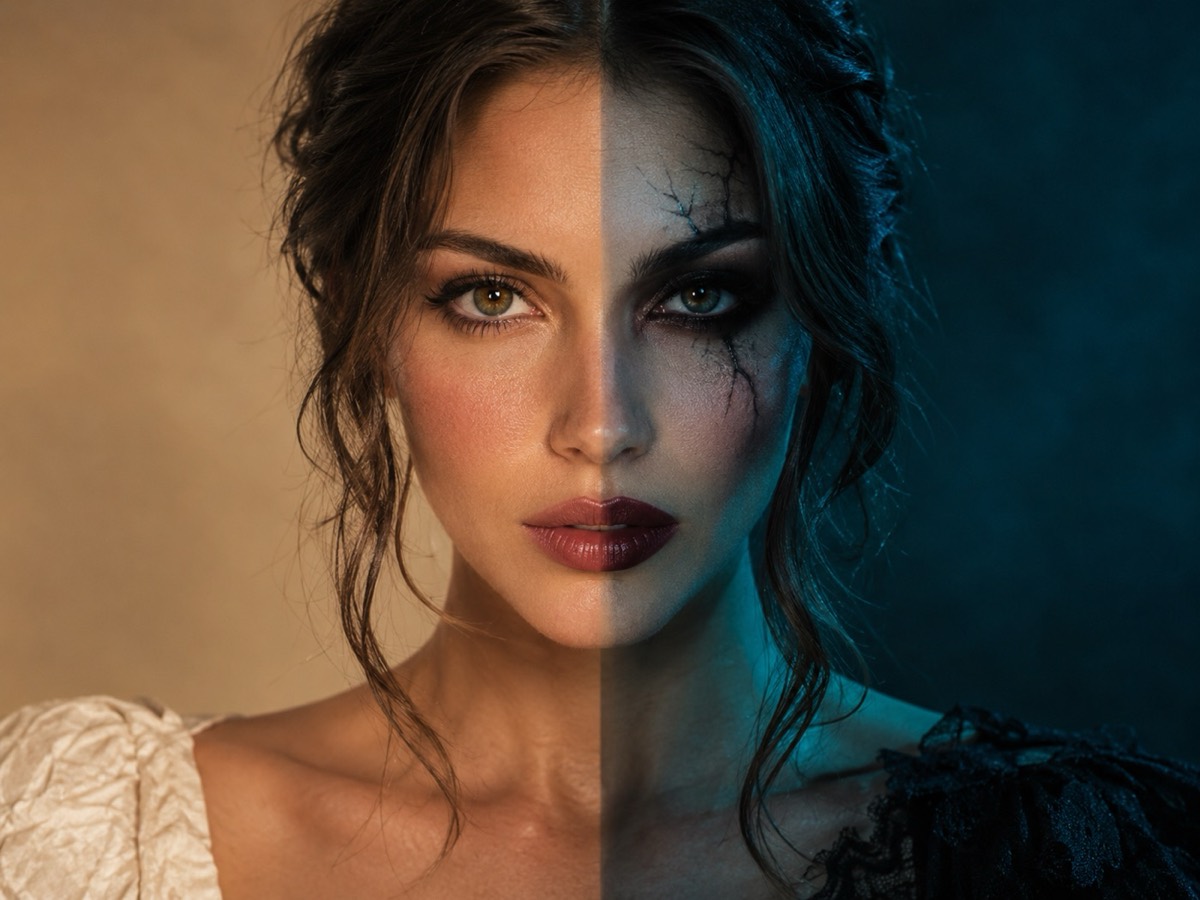
Try it on this page
Photos are moderated and only used for this render.
Keep the identity and “avoid” lines. They are what stop the model from inventing a new face.
Sign in to upload and render. Your first pack starts at $9.90.
A Halloween photo edit has one job: change the scene without changing the person. That sounds simple, and it is the exact thing most AI edits get wrong. The costume appears, the background changes, and the face quietly becomes someone else.
This guide is about getting the edit you asked for. It covers which changes are worth a regeneration, how to write the prompt, how to judge the result, and what it costs on this site.
First: is this a slider edit or a regeneration?
Before opening an AI editor, decide what kind of change you need.
A slider edit is cropping, straightening, exposure, white balance, small blemish removal. Use a normal photo editor. It is faster, deterministic and free.
A regeneration edit is a change that requires pixels that do not exist in the photo: a new background, a different outfit, Halloween makeup, a new light direction, a seasonal set. That is what the AI photo editor is for.
Most wasted credits come from using a generative tool for a slider job. A slightly dark photo does not need a new scene; it needs exposure.
The prompt skeleton
Write five parts, in this order:
- Preserve. Face, skin tone, age, body proportions, number of people.
- Change. Costume, hair, makeup, accessories.
- Place. Room, street, studio, objects.
- Light. Time of day, direction, colour, shadow quality.
- Avoid. Extra limbs, merged faces, text, logos, watermarks, gore.
Here is a complete example:
Edit the uploaded photo into a cinematic haunted-house portrait for Halloween. Preserve the subject's recognizable face, skin tone and natural anatomy. Add tasteful Halloween makeup: smoked eyes, a subtle stitched scar on one cheek and deep burgundy lips. Replace the background with a dim Victorian parlor: dusty velvet curtains, a candelabra, a gilt mirror and cold moonlight through a tall window. Use soft directional light from the left, realistic skin texture, shallow depth of field and a muted teal-and-amber grade. Keep the same number of people. Avoid horror gore, altered identity, extra people, text and watermarks.
Notice what is not there: no “8k”, no “masterpiece”, no list of twenty adjectives. Those tokens do not constrain the model; they just take up space.
The four edits worth making
Costume only. Keep the pose, the room and the light; change the clothes. This is the cleanest edit and the most useful for a costume decision.
Makeup only. Keep the clothes and the room; add Halloween makeup. This is the best option for a profile photo because it still looks like a normal photo.
Background only. Keep the person and the clothes; replace the room. This is how you turn a plain wall into a Victorian parlour or a porch.
Light only. Keep everything; change the time of day or the direction. This is the subtlest edit and the one most likely to look professional.
Do not combine all four on the first try. If the result is wrong, you will not know which change caused it.
Judging the result in ten seconds
Look at four things, in this order:
- The eyes. Are they the same shape, spacing and colour? If not, the identity drifted.
- The hands. Count the fingers. Check for a second thumb.
- The costume. Does it have the silhouette you asked for, or a generic Halloween costume?
- The edges. Is there a halo around the hair, a floating collar, a chair leg that disappears?
If the eyes are wrong, regenerate with a clearer source photo. If the hands are wrong, add “natural hands, five fingers” to the avoid clause and regenerate. If the costume is generic, name one garment and one colour; do not add more adjectives.
The source photo matters more than the prompt
A front-facing photo with even light and the whole face visible will beat a better prompt on a worse photo every time. Three fixes before uploading:
- Crop to one person.
- Brighten the face if it is in shadow.
- Remove heavy beauty filters that have erased skin texture.
Do not upload a photo where the face is smaller than a thumbnail. The model needs pixels to preserve identity, and it cannot invent detail that is not there.
Common failures and the one-line fix
The face changed. Add or strengthen the preservation clause; use a clearer source photo.
The costume is generic. Name the garment, the fabric and one colour. “A black velvet jacket with silver buttons” beats “a cool Halloween costume”.
The background is busy. Add “clean background, generous negative space” and name fewer objects.
The skin looks plastic. Add “realistic skin texture, visible pores, natural shadows” and avoid “beauty retouch”.
There is text on the shirt. Add “no text, no logos, no lettering”. Generated text is almost always wrong.
The image is too dark. Ask for “soft directional light from the left” rather than “dark and moody”. Mood is a grade; darkness is an exposure problem.
What it costs
One still costs one credit. The $9.90 one-time pack contains 15 credits, so it is 15 edits or 14 edits and one video test. Credits in one-time packs never expire. Failed renders are refunded automatically.
If you are testing a costume, generate two looks and compare. Two credits is still cheaper than a costume you wear once and hate.
From still to video
A finished edit can become a short video. Take the still into the Halloween video generator and ask for one small motion: a head turn, a blink, fog drifting, a slow push-in. The costume and background stay consistent because the video model starts from the edited frame.
This two-step route is more controllable than asking a video model to invent the costume and the motion in one pass. It also lets you reject a bad look for one credit instead of fifteen.
A short checklist
- Crop to one person.
- Brighten the face.
- Write the preserve clause first.
- Change one thing.
- Check the eyes, hands, costume and edges.
- Regenerate rather than over-edit.
- Keep the prompt that worked.
That is the whole process. The tools are on the Halloween photo editor page; the prompts are in the Halloween prompt library. If you want a full costume rather than a makeup edit, start with the costume generator.